
Feeds
Managing Feed Permissions
Control who can do what in your custom feeds.
When you share a custom feed, you decide what each person can do. Permissions give you fine-grained control over your collaborative workspace.
Permission levels
The table below is generated directly from the app's permission rules:
Feed-Level Permissions
What each role can do within a feed. These apply regardless of subscription tier — every user can participate in public feeds.
| Action | Owner | Admin | Poster | Commenter | Lurker |
|---|---|---|---|---|---|
| Create receipts | ✓ | ✓ | ✓ | ✗ | ✗ |
| Edit receipts | ✓ | ✓ | ✓ | ✗ | ✗ |
| Delete receipts | ✓ | ✓ | ✓ | ✗ | ✗ |
| Comment | ✓ | ✓ | ✓ | ✓ | ✗ |
| Vote | ✓ | ✓ | ✓ | ✓ | ✓ |
| Create feeds | ✓ | ✓ | ✓ | ✓ | ✓ |
| Edit feed settings | ✓ | ✓ | ✗ | ✗ | ✗ |
| Delete feed | ✓ | ✗ | ✗ | ✗ | ✗ |
| Share feed | ✓ | ✓ | ✗ | ✗ | ✗ |
This table is generated from the app's actual permission rules and stays in sync automatically.
App-Level Permissions
What each subscription tier / account class unlocks across the entire app. These are in addition to feed-level permissions above.
| Feature | Free | Plus | Premium | Creator Std | Creator Elite | Biz Starter | Biz Pro | Internal |
|---|---|---|---|---|---|---|---|---|
| Admin Panel | ✗ | ✗ | ✗ | ✗ | ✗ | ✗ | ✗ | ✓ |
| User Management | ✗ | ✗ | ✗ | ✗ | ✗ | ✓ | ✓ | ✓ |
| Data Export | ✗ | ✗ | ✗ | ✗ | ✓ | ✗ | ✓ | ✓ |
| Internal Documentation | ✗ | ✗ | ✗ | ✗ | ✗ | ✗ | ✗ | ✓ |
| Billing Management | ✗ | ✓ | ✓ | ✓ | ✓ | ✓ | ✓ | ✓ |
| Team Management | ✗ | ✗ | ✗ | ✗ | ✗ | ✓ | ✓ | ✓ |
| Advanced Analytics | ✗ | ✗ | ✗ | ✗ | ✓ | ✗ | ✓ | ✓ |
| Priority AI Moderation | ✗ | ✗ | ✓ | ✓ | ✓ | ✓ | ✓ | ✓ |
| Creator Tools | ✗ | ✗ | ✗ | ✓ | ✓ | ✗ | ✗ | ✓ |
| API Access | ✗ | ✗ | ✗ | ✗ | ✓ | ✗ | ✓ | ✓ |
This table is generated from the app's actual permission matrix and stays in sync automatically. Business columns show Owner permissions. Business Admins share Team Management and User Management but not Billing. Business Members receive only AI Moderation Priority.
How to change permissions
- Open the Feed Manager from any video page
- Select the shared feed
- Click Share to see the current members list
- Update permission levels using the dropdown next to each user
- To remove someone, click the Remove button next to their name
- Click Save to apply your changes
Changes take effect immediately for all users.
Good to know
- Only Owners and Admins can manage feed settings and invite new members
- The person who created the feed is always the Owner — this can't be changed
- Admins can do everything except delete the feed itself
- Posters are ideal for collaborators who need to contribute receipts but shouldn't manage the feed
- Commenters are great for people who want to participate in discussion without creating receipts
- Lurkers can still vote on receipts, making them useful for audience members who want to signal agreement
See also
- Sharing a Feed — how to invite people to your feed
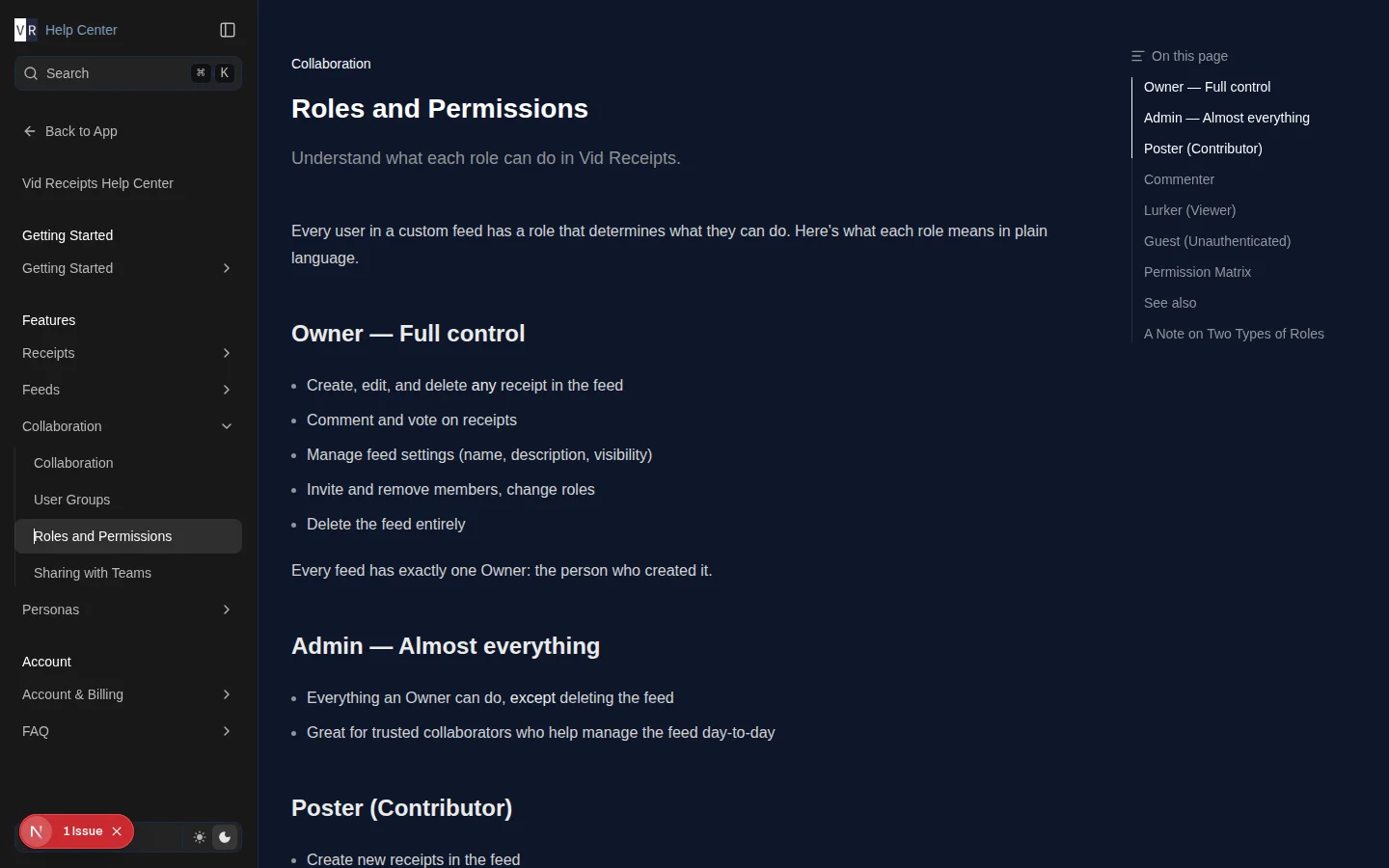
- Roles and Permissions — the full permission breakdown across Vid Receipts